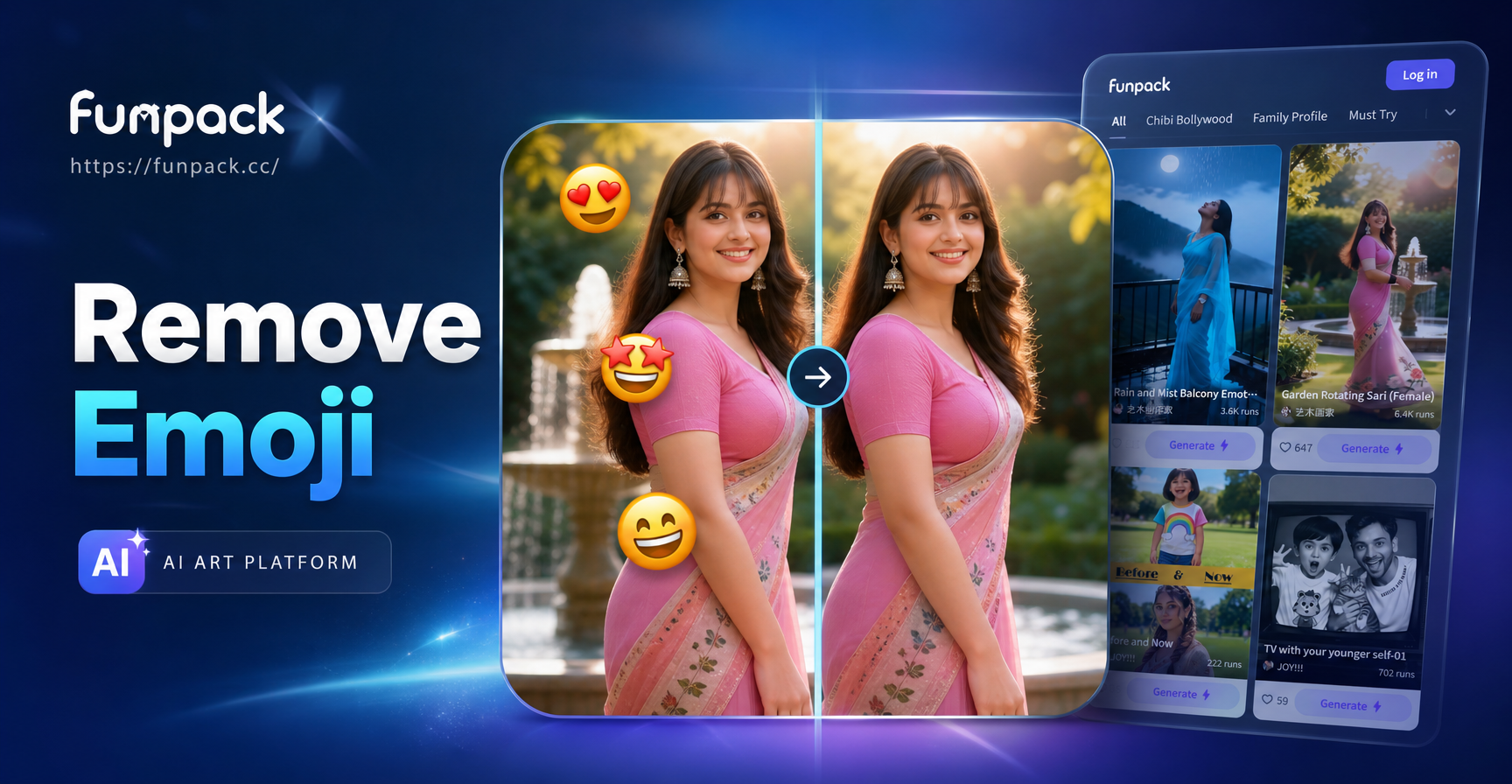
Removing an emoji from a picture used to be a job for professional designers with expensive software. Today, anyone can clean up a photo in seconds. Whether you are fixing a family portrait, preparing a product image for your online store, or just cleaning up a screenshot, learning how to remove emoji in picture is a useful skill.
In this guide, we will walk you through three practical methods. You will learn how AI tools can erase emojis automatically, how manual editing works, and how to use a mobile app like funpack for instant results. By the end, you will know exactly which method fits your situation.
Why Would You Want to Remove Emoji from a Picture?
Emojis are fun, but they can ruin a photo when you need a clean version. Maybe you received an edited photo from a friend and want the original. Maybe you added a sticker to test a filter and changed your mind. Or perhaps you found an image online with a watermark made of emoji characters.
Whatever the reason, the goal is the same: restore the image to look as if the emoji never existed. This requires filling in the background, texture, and details behind the emoji. Doing this by hand can be tedious and often looks fake. AI tools have changed that. They analyze the surrounding pixels and rebuild the hidden area automatically.
Method 1: Use an AI App for Instant Results
The fastest way to remove emoji in picture is to use an AI powered mobile app. funpack, available on Google Play, offers an easy workflow that requires no design skills. You upload the photo, select the emoji area, and let the AI do the heavy lifting.
What makes AI better than manual tools? Traditional editors copy nearby pixels and paste them over the emoji. This often creates smudges or repeating patterns. AI models understand context. They know that an emoji covering a face should reveal a face, not a patch of random skin. They can reconstruct eyes, lips, fabric textures, and natural backgrounds with impressive realism.
funpack is designed for simplicity. The app includes a massive library of style filters and editing tools, all accessible from your phone. You do not need a desktop computer, a stylus, or any prior editing experience. It is genuinely a tap and done process.
Method 2: Manual Healing Brush Technique
If you prefer a manual approach, many photo editors have a healing brush or clone stamp tool. These tools sample one area of the image and paint over the emoji with that texture. The healing brush blends edges automatically, which helps it look more natural than a simple copy and paste.
The trick is to select a source area that is close to the emoji and has similar lighting and color. For example, if the emoji is on a blue sky, sample the sky right next to it. If it is on skin, sample skin from a nearby area with the same tone. Work in small strokes rather than one big swipe. This gives you more control and reduces visible seams.
Manual editing works well on simple backgrounds like solid colors, walls, or grass. It struggles with complex textures such as hair, busy patterns, or detailed clothing. In those cases, the result can look blurry or obviously retouched.
Method 3: Cropping the Emoji Out
The simplest solution is not always about rebuilding pixels. If the emoji sits near the edge of your photo, cropping can remove it completely. This method loses a small part of the image but guarantees a natural look because there is no editing involved.
Open your photo in any basic editor and crop away the edge containing the emoji. This works well for social media posts where the emoji is placed as a decorative sticker near a corner. If you need to adjust the composition, you can also rotate or zoom slightly before cropping.
Cropping is not a good option when the emoji covers the main subject, such as a face or an important object. But for edges and corners, it is the cleanest and fastest fix.
How to Remove Emoji from Photo Using funpack
funpack makes the process straightforward. The app is built for mobile creators who want powerful tools without a steep learning curve. Here is how to get started.
Step 1: Download and Open the App
Go to Google Play and download funpack. It is a mobile app only, so you will need an Android device. Once installed, open the app and grant photo access so you can import your image.
Step 2: Select the Image and AI Erase Tool
Pick the photo that has the emoji you want to remove. Look for the AI erase or object removal feature. In funpack, this is usually a simple button labeled 'Remove Objects' or a magic eraser icon. Tap it and then tap or draw over the emoji.
Step 3: Let AI Rebuild and Export
The AI will process the selected area and rebuild the hidden background. Preview the result. If you are happy, save the clean image to your photo gallery. If not, you can undo and adjust the selection area. The whole process takes less than a minute.
Key Features to Look for in an Emoji Removal Tool
Not all tools are equal. Some are better suited for quick fixes, while others handle complex images. Here are a few features that make a difference.
AI Background Understanding
The tool should not just blur the area. It should understand whether it is filling a face, a hand, a shirt, or a wall. The best tools use machine learning models trained on millions of images. They know what a nose looks like, how fabric folds, and how shadows fall. This is the difference between a convincing edit and an obvious one.
Multiple Image Formats
Your photos might be JPG, PNG, or HEIC. A good app handles all the common formats without crashing or losing quality. It should export in high resolution so your clean photo looks sharp on any screen.
No Watermark
Some free tools add their own watermark back onto your cleaned photo. That defeats the purpose. funpack does not add a watermark to your exports. What you see after editing is what you get.
Common Mistakes When Removing Emojis from Pictures
Even with a good tool, there are a few pitfalls to avoid. Knowing these will help you get a better result on the first try.
Selecting Too Large an Area
If you draw a huge circle around the emoji, the AI has less accurate data to work with. Try to select just the emoji and a small margin around it. This gives the model a tight, clear task. You can always draw a second, larger selection if the first attempt leaves residue.
Ignoring Shadows and Reflections
Emoji stickers sometimes sit on glass, water, or shiny surfaces. The AI might remove the emoji but leave an odd reflection behind. After processing, zoom in and check the area carefully. A second pass on the reflection area usually fixes it.
Using Low Quality Screenshots
The quality of the input image matters. A compressed screenshot with heavy JPEG artifacts is harder to edit cleanly. If you have access to the original photo, always start from that. The AI has more data to work with, and your final export will look much better.
Frequently Asked Questions About Removing Emojis from Images
Below are common questions people ask when they start cleaning up their photos.
Can I remove an emoji from a picture without photoshop?
Yes. You do not need Photoshop or any desktop software. Mobile apps with AI object removal can handle this. funpack, for example, runs entirely on your phone and produces high quality results.
Does the AI method work on faces?
Yes, but the outcome depends on the size of the emoji relative to the face. If an emoji covers one eye, the AI can often rebuild a convincing eye based on the other eye and surrounding features. If the emoji covers the entire face, the result may look different from the original. In that case, a partial removal and manual touch up might be needed.
Is it possible to remove emojis from a group photo?
Yes. AI tools handle group photos well because there is plenty of surrounding context. The tool can identify different faces and rebuild hidden areas without blending features together. funpack has multi-person photo processing capabilities, which makes it a strong choice for group shots.
Why does the edited area look blurry?
Blur usually happens when the selection area is too large or the source image is low resolution. Try selecting a smaller area and using the original photo file. If the area has complex texture like hair, you may need to make a second pass. Some blur is also introduced when the AI has to guess high frequency details that simply do not exist in a compressed image.
Can I remove multiple emojis at once?
Yes. Most editing tools let you make several selections before processing. You can draw over multiple emoji stickers and then run the removal once. This is faster than processing each one individually. Make sure the selections do not overlap too much, or the AI may have trouble keeping the edits clean.
Tips for Getting the Best Results Every Time
Small habits make a big difference. Follow these tips to get clean, natural looking photos every time you remove an emoji.
Always start with the highest resolution version of the photo you can find. Zoom in before and after processing to check details. Work in a well lit environment if you are taking a new photo specifically to edit. And do not be afraid to undo and try again. AI editing is not a one shot deal. You can refine your selection and run the process multiple times.
Another useful tip is to plan your photos before you add emojis. If you think you might need a clean version later, keep a copy of the original. This completely eliminates the need for removal. But when you do not have the original, the methods above will get you very close to perfect.
Final Thoughts
Learning how to remove emoji in picture is much easier than most people think. You do not need to be a professional editor or spend hours learning complicated software. AI powered apps like funpack put powerful tools right on your phone. Manual healing brushes offer more control for simple backgrounds. And cropping works perfectly for emojis stuck near the edges.
Whichever method you pick, the most important thing is to practice. Start with a photo that has an easy background, then move on to more complex images. You will quickly see which approach gives you the cleanest, most natural result. Download funpack today and see how fast and easy photo cleanup can be.