Why Awarapan 2 Has a Distinctive Photo Editing Look
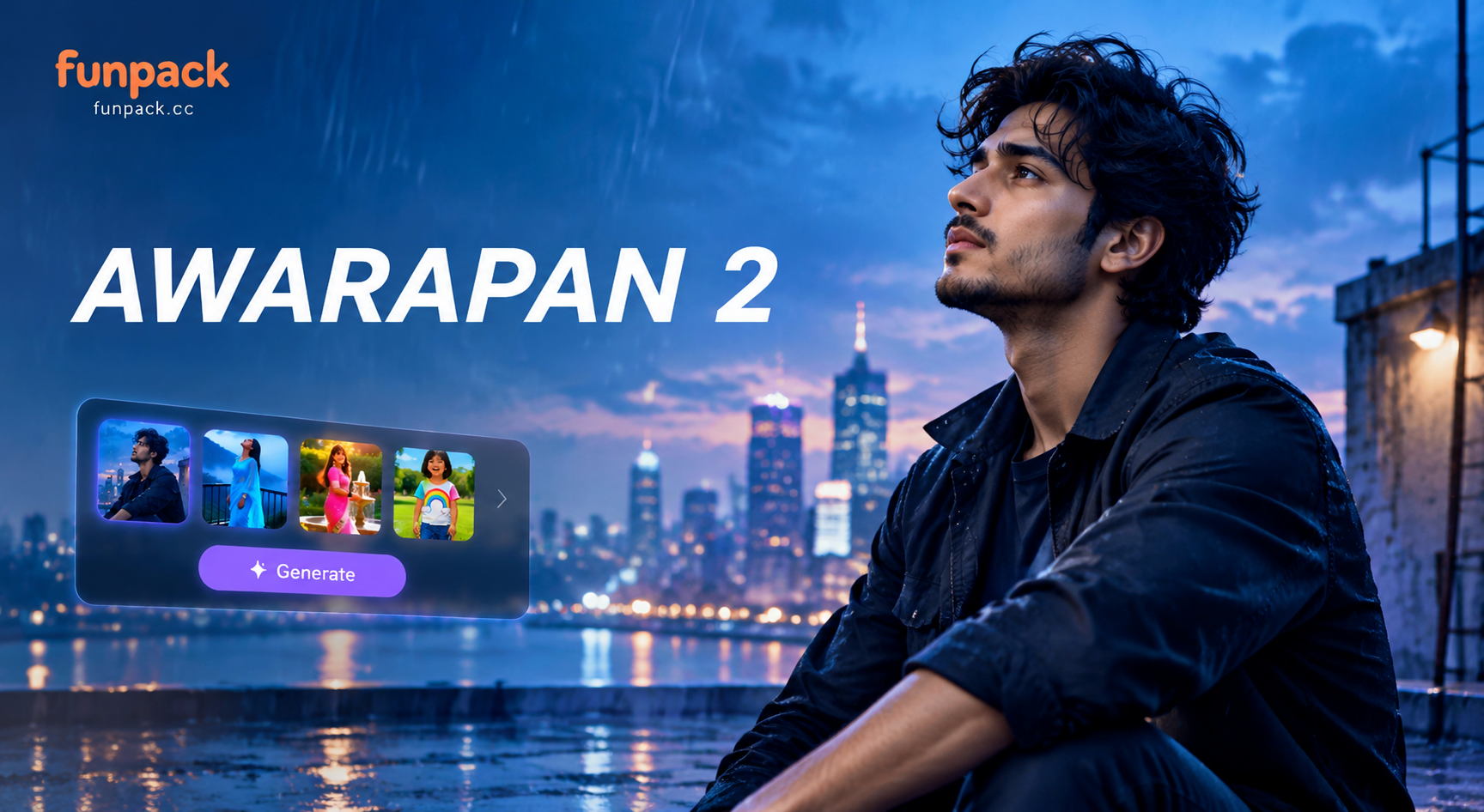
Awarapan 2, the long awaited sequel to the 2007 cult film Awarapan, carries a visual identity that fans instantly recognize. The original movie used deep shadows, cold blue tones, selective warm highlights, and a sense of emotional heaviness. When you search for Awarapan 2 AI photo editing prompts, you likely want to recreate that same moody Bollywood thriller aesthetic in your own photos. Whether you have a portrait, a street shot, or a dramatic scene, you can use text prompts with an AI photo editor to apply cinematic color grading, dramatic lighting, and film grain that echo the spirit of the film.
Below you will find a collection of 15 specific Awarapan 2 style AI photo editing prompts. Each prompt is written so you can copy it directly into an AI photo editing app such as funpack. You can adjust the wording to match your photo and the level of drama you want.
Understanding the Awarapan 2 Aesthetic
Before you start editing, it helps to know what defines the Awarapan 2 look. The visual style builds on the first film but pushes it further into a grittier, more emotional territory. Common elements include:
- Dark and moody backgrounds with high contrast between light and shadow
- A teal and orange color grade where shadows lean blue and skin tones stay warm
- Rain, mist, or haze to soften backgrounds and add depth
- Close up portraits with intense eyes and controlled rim lighting
- Neo noir street scenes with wet asphalt and neon reflections
- Subtle film grain for a textured, cinematic feel
When you write an AI photo editing prompt, include these visual keywords. The AI will interpret them and apply the effect to your uploaded image. The more specific you are about lighting, color, and atmosphere, the closer you will get to the Awarapan 2 look.
How to Use These AI Photo Editing Prompts
Most AI photo editors work in a similar way. You upload a photo, type a prompt that describes the edit you want, and the AI generates a new version of the image. For best results:
- Choose a high resolution photo with a clear subject. A portrait or a single person works best for the dramatic close up prompts.
- Paste one of the prompts below into the text field. You can copy it exactly or modify it to fit your photo.
- If the app has a strength slider, start around 60 to 70 percent. Too low may not change the mood enough, too high may distort the face.
- Generate two or three versions. Small changes in the prompt can produce very different results.
- If the app supports reference images, use a still from an Awarapan style scene as a style reference. This can help the AI match the color grade more precisely.
Now let's get into the prompts.
15 Awarapan 2 AI Photo Editing Prompts
Mood and Atmosphere Prompts
Use these prompts to add an overall cinematic mood to your photo.
- Transform this photo into a moody Bollywood film still with deep shadows, teal shadows and warm orange highlights, cinematic color grade, rain on window, emotional tension.
- Add a dark overcast sky and dramatic rim lighting, neo noir thriller atmosphere, lonely street at night, figure standing under a flickering lamp.
- Apply a film grain and a desaturated blue palette with selective orange skin tones, Awarapan style emotional look, heavy atmosphere.
- Turn the background into a rainy Mumbai street at night, neon reflections on wet asphalt, moody atmosphere, man walking with collar up.
Portrait Focus Prompts
For close up shots and selfies, these prompts enhance the emotional intensity of the subject.
- Edit this portrait to have intense eyes, soft key light from the side, deep black background, subtle vignette, Bollywood dramatic hero look.
- Turn this selfie into a brooding character poster with teal and orange split lighting, sweat or rain droplets on skin, emotional stare.
- Add subtle cigarette smoke or mist around the subject, dark background, cinematic color grading, film noir mood.
- Edit to show a conflicted expression, tear on cheek, soft window light, dark room, emotional close up, Awarapan style dramatic portrait.
Scene and Environment Prompts
These prompts transform the location or background of your photo into the world of Awarapan 2.
- Transform the background into a rainy Mumbai street at night, neon signs reflecting on wet roads, two people standing apart under an awning.
- Add a desaturated industrial backdrop, chain link fence, high contrast shadows, sunset orange glow behind the subject.
- Create a rooftop scene at dusk with a city skyline, dramatic clouds, figure looking away, Awarapan style tension.
- Replace the background with a dimly lit room, wooden furniture, a single hanging bulb, dust particles in the air, teal and orange grade.
Action and Emotion Prompts
For photos that suggest movement or intense emotion, try these prompts.
- Add motion blur and a sense of urgency, subject running through a crowd, dark blue and orange grading, cinematic thriller feel.
- Add a silhouette of two people arguing in a dimly lit room, backlight with haze, color grade like a Bollywood drama.
- Transform this photo into a dramatic stormy sky scene with a lone figure standing on a cliff, wind blowing clothes, gray and amber tones.
These 15 prompts cover the most common Awarapan 2 style edits. Remember you can combine elements from different prompts. For example, you might take the rain from a mood prompt and add it to a portrait prompt. Experimentation is key.
Tips for Getting the Best Awarapan 2 Look
Even with a good prompt, you may need a few attempts to get the result you want. Here are practical tips from experienced AI photo editors.
- Keep the subject's face clear. Add the phrase "preserve facial features" or "realistic skin texture" if the AI distorts the face too much.
- Use color vocabulary exactly. Words like "teal", "orange", "desaturated", "high contrast", and "film grain" have strong effects on AI models.
- Mention lighting direction. Saying "side key light" or "backlight with haze" helps the AI place shadows realistically.
- Adjust the strength. A lower strength keeps more of the original photo, while a higher strength creates a more dramatic transformation.
- If your photo has multiple people, add "two people" or "crowd" to the prompt so the AI does not blend faces.
Common Mistakes and How to Fix Them
Many beginners run into the same issues when using AI photo editing prompts for a Bollywood thriller look. Here are the most frequent problems and their fixes.
- Oversaturated orange skin: If the skin looks too orange, add "natural skin tone" or "subtle warm skin" to your prompt.
- Too much blur: If the photo becomes blurry, add "sharp focus on eyes" or "crisp details" and lower the strength.
- Losing facial identity: When the AI changes the face too much, add "keep original face" or "preserve subject identity".
- Flat lighting: If the result lacks drama, add "high contrast", "deep shadows", or "dramatic rim light".
- Unwanted elements: If the AI adds rain or smoke you did not want, remove those words and regenerate.
Final Thoughts on Awarapan 2 AI Photo Editing
Awarapan 2 AI photo editing prompts let you turn ordinary photos into cinematic stills that feel like they belong in a Bollywood thriller. The key is to describe the mood, the color grade, and the lighting as specifically as possible. Use the prompts above as a starting point, mix and match elements, and do not be afraid to try several variations until you get the dramatic look you want.
Apps like funpack make this process simple. You can upload your photo, paste one of these prompts, choose a style template if you need extra guidance, and generate the result in seconds. Download funpack from Google Play and start experimenting with these Awarapan 2 prompts today.