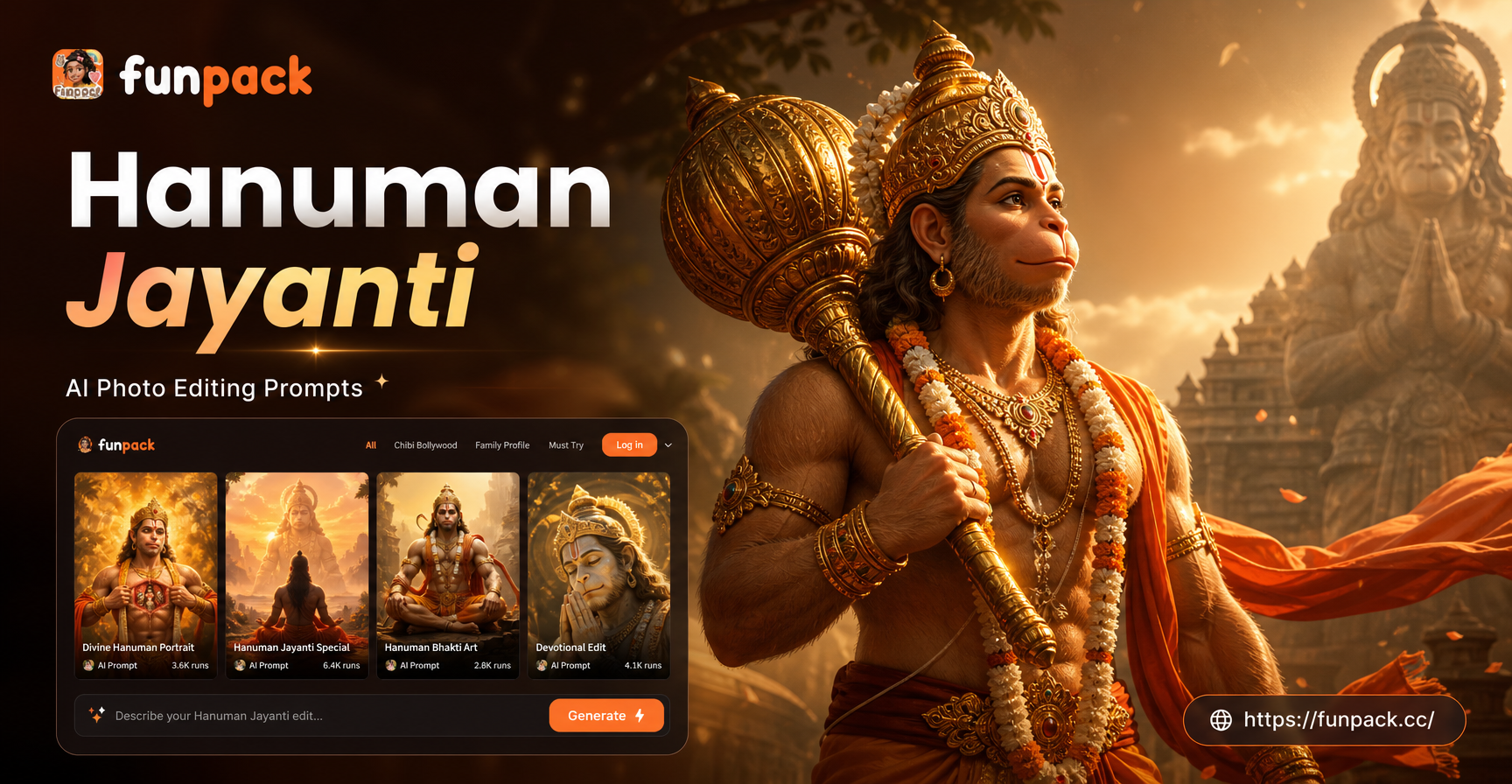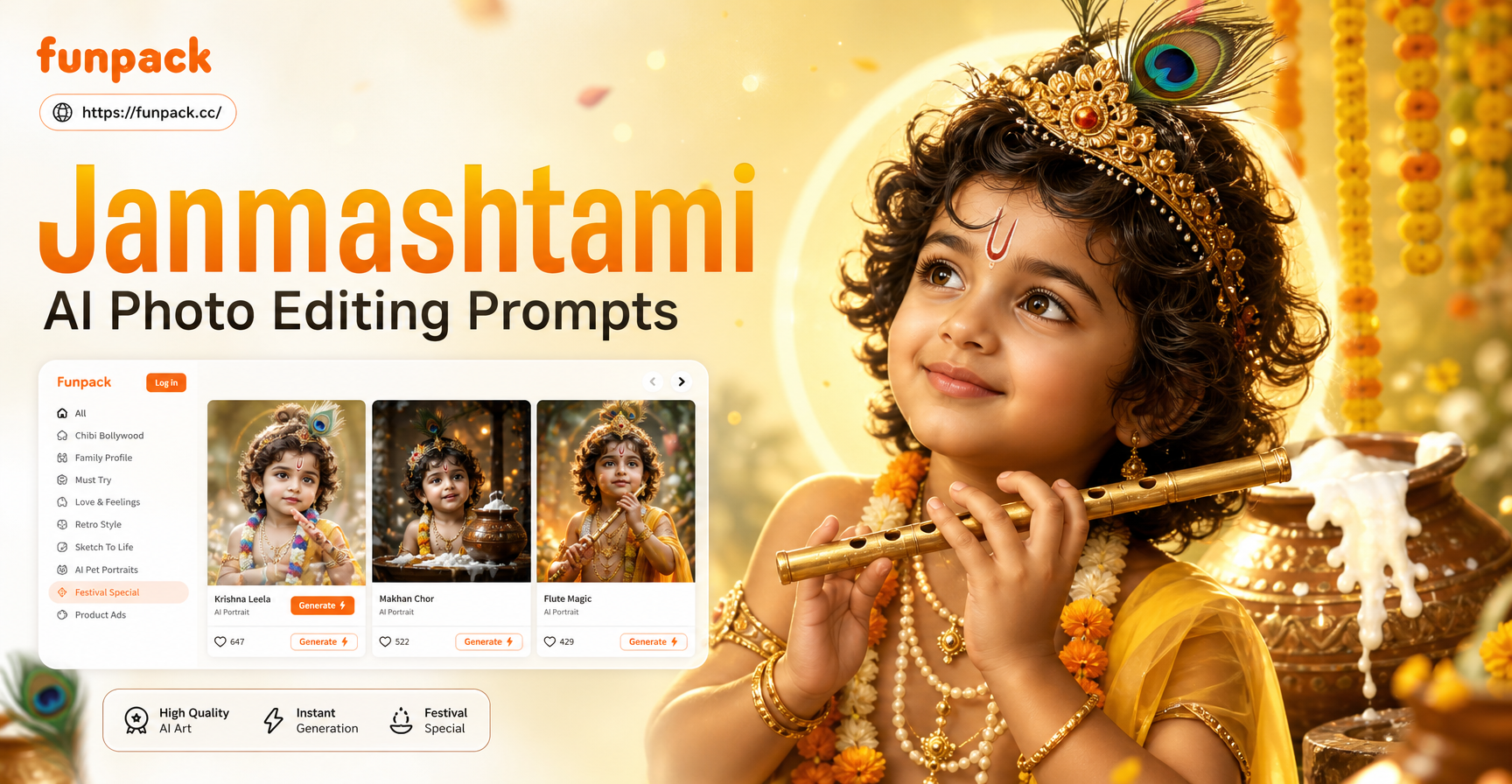
If you searched for Janmashtami AI photo editing prompts, you likely want to turn regular photos into festive Krishna Janmashtami themed images without learning professional editing tools. This guide shares ready to use prompts that work inside the funpack app. You can create lord Krishna portraits, temple backgrounds, traditional outfits, group celebration edits, and more directly from your phone.
What Are Janmashtami AI Photo Editing Prompts?
Janmashtami AI photo editing prompts are short text instructions that tell an AI image generator how to transform your photo. Instead of adjusting layers or selecting brushes, you type a description of the final look you want. The AI then applies that style, background, clothing, lighting, and mood to your uploaded image. For Janmashtami, these prompts often mention Krishna, peacock feathers, matki pots, temple architecture, marigold garlands, and traditional Indian festival colors.
Because Janmashtami celebrates the birth of Lord Krishna, the visual language is rich and specific. You can ask for a portrait of baby Krishna, a dramatic scene of Krishna lifting Govardhan hill, a family dressed in festive wear, or a soft devotional painting style. The prompts in this article are written to be copied, pasted, and adapted with your own photo inside funpack.
Why Use AI Prompts for Janmashtami Photo Editing?
Traditional photo editing takes time and skill. An AI prompt removes the hard part by letting you describe the result in plain language. You still control the direction with words like golden temple light, matte painting, or realistic portrait. But you do not need to know how to mask, composite, or color grade. funpack also offers more than one million style templates, so you can pair a prompt with a preset filter that matches the festive mood.
AI prompts are especially useful when you want multiple versions of the same photo. You can generate a realistic edit, an anime version, a Ghibli style illustration, or a 3D clay look from the same original image. This makes Janmashtami content creation faster for social media, greeting cards, and family albums.
How to Write Effective Janmashtami AI Prompts
A strong prompt is specific about the subject, setting, clothing, colors, lighting, and art style. For Janmashtami, include cultural details that the AI can recognize. The more concrete your words, the better the output.
- Start with the subject: a young boy dressed as Krishna, a family in traditional Indian clothes, or a baby in a golden cradle.
- Add the setting: inside a decorated temple, under a full moon in Vrindavan, or beside a clay pot with butter.
- Describe clothing and accessories: yellow dhoti, peacock feather crown, silk shawl, gold jewelry.
- Set the mood and light: soft morning light, warm oil lamp glow, festive night with diyas.
- Choose an art style: realistic photo, cinematic film still, Ghibli style illustration, watercolor painting, 3D clay render.
You can also combine multiple details in one prompt. For example, transform my photo into a divine Krishna portrait with a peacock feather crown, golden temple background, soft cinematic lighting, and realistic skin texture. The AI will then match your uploaded face or composition to that description.
30+ Janmashtami AI Photo Editing Prompts
Below are prompts organized by theme. You can copy any prompt into funpack, upload your photo, and generate the edit. Feel free to replace words like my photo or the person with your own details such as gender, age, outfit color, or background preference.
Divine Krishna Portraits
- Transform my portrait into Lord Krishna with blue skin, a peacock feather crown, yellow silk dhoti, and a serene smile, set against a golden temple background.
- Edit my photo into a realistic Krishna portrait with dark curly hair, a flute in hand, marigold garland around the neck, and soft oil lamp lighting.
- Turn my selfie into a divine Krishna face with subtle blue tint, traditional Vaishnava tilak on the forehead, and a peacock feather tucked behind the ear.
- Create a cinematic Krishna portrait from my photo, wearing a bright yellow angavastra, standing in a palace courtyard, with warm sunset light and bokeh.
- Make me look like a devotional painting of Krishna playing the flute under a kadamba tree, with cows in the background and pastel morning light.
Traditional Decor and Temple Scenes
- Place my photo in a decorated Janmashtami temple with hanging marigold strings, brass lamps, and Krishna idol in the background, realistic festival lighting.
- Transform the background of my image into a Vrindavan courtyard with tulsi plant, clay pots, and colorful rangoli on the floor, natural daylight.
- Edit my photo to look like I am standing beside an ornate swing decorated with flowers and peacock feathers, traditional Indian festive decor.
- Generate a temple interior background with carved pillars, oil lamps, and a cradle for baby Krishna, while keeping my face and body realistic.
- Turn the scene into a night celebration with glowing diyas, fairy lights, and a full moon over a temple tower, soft cinematic blur.
Family and Group Photo Edits
- Convert our family photo into a Janmashtami greeting card scene, everyone wearing traditional Indian clothes, with a decorated Krishna cradle in the center.
- Edit our group photo to add festive props like peacock feathers, matki pots, and marigold garlands, while keeping all faces recognizable and natural.
- Transform our family portrait into a warm oil painting style, dressed in yellow and red festive attire, standing in a temple hall with soft golden light.
- Place our group photo in a Vrindavan street during Janmashtami procession, colorful flags and flower petals in the air, realistic and joyful mood.
- Make a cute family edit with everyone holding small butter pots and wearing Krishna crowns, pastel background with stars and festive ornaments.
Festive Color and Light Effects
- Add a rich golden and blue color grade to my photo, inspired by traditional Krishna paintings, with dramatic temple shadows and glowing highlights.
- Transform my portrait into a diya lit festival scene with warm orange and yellow tones, soft reflections on the face, and a dark festive night background.
- Apply a peacock feather color palette to my photo, with teal, green, and gold accents, giving it a royal Janmashtami mood.
- Edit my image with a soft pastel Ghibli style palette, featuring a dreamy temple garden, floating flower petals, and gentle morning light.
- Turn my photo into a high contrast cinematic still with deep blue night sky, warm festival lamps, and subtle film grain for a dramatic look.
Cute Bal Gopal and Childhood Krishna
- Transform my child's photo into baby Krishna crawling with a butter pot in hand, wearing a tiny peacock feather crown and silver anklets.
- Edit my toddler's portrait into Bal Gopal sitting on a soft leaf, with a cute smile, butter smeared on the face, and a golden halo behind.
- Make a cute 3D clay version of my baby photo as little Krishna, with round cheeks, a yellow dhoti, and a peacock feather, playful and adorable.
- Turn my child's picture into a storybook illustration of Krishna stealing butter from a hanging pot, warm cottage lighting and soft colors.
- Create a pastel watercolor portrait of my baby as Krishna holding a flute, with flower garlands and a gentle devotional mood.
Cinematic and Artistic Styles
- Recreate my photo as a scene from a mythological film, Krishna standing on a palace balcony, dramatic clouds, golden armor accents, and rich cinematic color.
- Apply an anime style to my Janmashtami portrait, with expressive eyes, bold outlines, and a glowing peacock feather background.
- Turn my image into a Ghibli style festival scene, with hand painted temple details, soft wind, and warm afternoon light.
- Generate a watercolor painting of my photo as Krishna with a flute, using loose brush strokes, deep blue and gold pigments, and textured paper.
- Edit my portrait into a 3D clay render of Lord Krishna, with smooth sculpted details, festive colors, and a clean studio background.
How to Adapt These Prompts in funpack
Open the funpack app on your Android phone. Choose the image to image feature, upload your photo, and pick a style template or enter a custom text prompt. You can type any prompt from this article directly into the text box. If you want a specific art style, select a matching filter first, such as realistic, anime, 3D clay, or Ghibli. Then generate and review the result.
For best results, use a clear front facing photo with good lighting. The AI preserves your facial features better when the original image is sharp. After generating, you can try the same prompt with a different style template to get multiple looks. Save your favorites and share them for Janmashtami greetings, social media posts, or family albums.
Common Weak Results and How to Fix Them
Sometimes AI photo edits do not match your vision. Here are quick fixes for common issues.
- Face looks different: Upload a higher resolution photo and avoid heavy shadows. Add keep my face exactly the same to your prompt.
- Too many extra details: Simplify the prompt. Remove any words about objects you do not want, such as cows or crown.
- Colors look dull: Add vibrant colors, rich gold and blue tones, festive lighting to increase visual impact.
- Style is not applied: Choose the specific style template inside funpack before generating. The prompt alone may not override the default photo style.
- Hands or props look distorted: Avoid prompting complex hand poses like playing a flute in a close up. Use wider shots and let the AI place the prop naturally.
Ready to Create Your Janmashtami Photo Edits?
Now you have more than 30 Janmashtami AI photo editing prompts that you can use right away. Download funpack from Google Play, upload a photo, paste a prompt, and let the AI handle the rest. The app is mobile only, so you can create festive edits from anywhere. Try a few prompts on the same photo to see how small wording changes produce very different results.