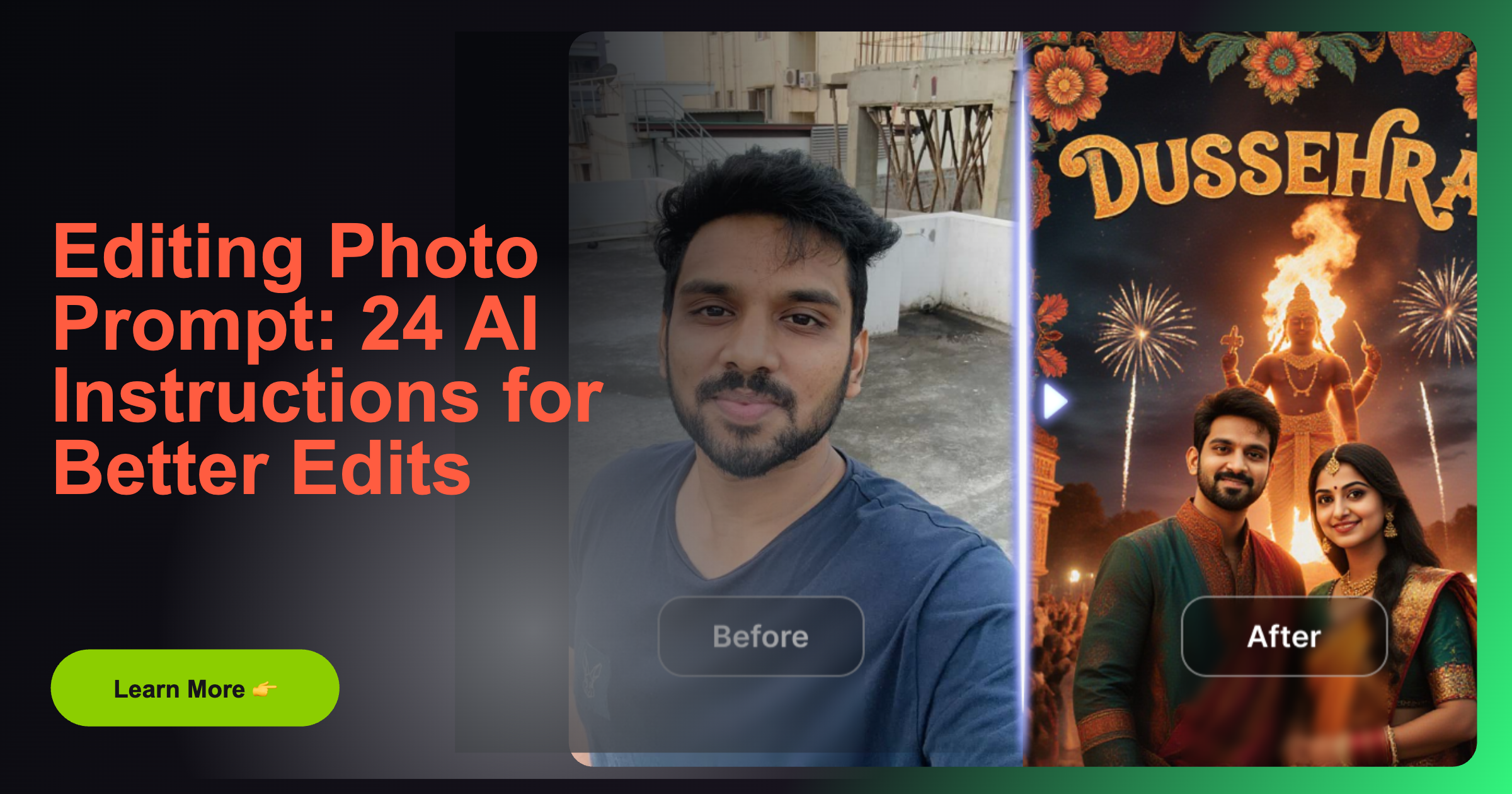
An effective editing photo prompt gives an AI photo editor three things: the change you want, where it should happen, and what must stay the same. Instead of “make this photo better,” ask for one controlled result, such as “replace the cluttered background with a soft grey studio wall; preserve the subject’s face, hair, clothing and pose.” If the editor offers a selection or mask, apply it to the area being changed before prompting.
This guide gives you a reusable prompt formula and 24 copy-ready examples for portraits, travel, products, food and everyday photos. Funpack describes itself as an AI photo transformation generator; use its official site to explore its available photo effects, but check the current interface for the exact controls offered. The prompts below are adaptable examples, not claims about a specific Funpack feature.
The editing photo prompt formula
Use this structure:
Change [specific element] to [desired result] in [location]. Preserve [identity, pose, objects or composition]. Match [lighting, perspective, colour or style]. Avoid [unwanted change].
For example: “Replace the cluttered background with a clean pale-grey studio backdrop. Keep the person’s face, hairstyle, skin tone, clothes and pose unchanged. Match the original soft light and camera angle. Do not add accessories or text.”
The instruction works because it separates the requested edit from the details that define the original image. If your tool supports masking, select only the background rather than prompting on the whole portrait. Make one major change at a time so you can tell which instruction caused an unwanted result.
24 copy-ready AI photo editing prompts
Replace bracketed details with what is actually in your photo. Use only instructions that fit the editor’s available workflow.
Portrait and selfie prompts
- Clean background: “Replace the background with a simple warm-grey studio wall. Preserve the subject’s identity, expression, hairstyle, clothing and pose. Match the existing light direction and perspective.”
- Soft daylight: “Give this portrait soft natural window light from the left. Keep the face shape, skin tone, expression and clothing unchanged. Retain realistic shadows and skin texture.”
- Remove a distraction: “Remove the [specific object] behind the subject and continue the wall naturally. Do not alter the person, hair edges or nearby furniture.”
- Subtle colour grade: “Apply a gentle warm colour grade while preserving natural skin tones, white balance on the shirt and the original contrast. Do not add a filter effect or change the background.”
- Professional profile picture: “Create a neutral, softly lit office background. Preserve the person’s face, age, hairstyle, clothing and expression. Keep the crop from the shoulders up and avoid adding objects.”
- Restore an old portrait: “Reduce fading and dust while preserving the original person, facial features, clothing and photographic character. Do not invent jewellery, sharpen facial details unnaturally or colourise unless requested.”
Travel and outdoor prompts
- Overcast-to-sunny sky: “Make the sky lightly brighter and clearer, keeping the buildings, trees, people and framing unchanged. Match the existing light and avoid a dramatic sunset.”
- Remove a passer-by: “Remove the person in the far-left background and reconstruct the pavement and railing behind them. Preserve the main subject and all other people.”
- Monsoon mood: “Add a light post-rain sheen to the road and soft overcast reflections. Preserve the location, people, signs and time-of-day feel; do not add falling rain or change clothing.”
- Landscape detail: “Improve visibility in the distant hills without changing their shape, the foreground or the crop. Keep atmospheric haze natural and colours restrained.”
- Travel postcard crop: “Extend the sky slightly above the temple to create more space in the vertical composition. Continue the existing sky and preserve the architecture without adding decorative details.”
- Remove a wire: “Remove the thin cable crossing the upper sky and reconstruct the clouds behind it. Keep the rooftops, branches and horizon unchanged.”
Product and small-business photo prompts
- Plain product backdrop: “Replace the surface behind this [product] with a clean off-white background. Preserve the product’s exact shape, label, colour and proportions. Keep a soft contact shadow beneath it.”
- Marketplace-ready lighting: “Even out the lighting on the [product] while retaining its true colour, texture, logo and label text. Keep the camera angle and background unchanged.”
- Remove clutter: “Remove the loose items to the right of the product and continue the tabletop naturally. Do not change the product, packaging or printed text.”
- Lifestyle setting: “Place this [product] on a simple Indian home kitchen counter with a softly blurred, uncluttered background. Preserve its packaging, shape and label exactly; keep lighting realistic.”
- Shadow correction: “Soften the hard shadow on the left side of the [product] while keeping a natural contact shadow. Preserve the object’s edges, material and original position.”
- Colour accuracy: “Correct the white balance so the [fabric/product] appears its true [colour]. Preserve texture, stitching, shape and all printed details; do not stylise.”
Food, family and everyday photo prompts
- Food-photo cleanup: “Remove the used napkin at the top edge and continue the wooden table behind it. Preserve the dish, garnish, plate and natural food texture.”
- Family group background: “Replace the busy background with a simple garden setting in soft afternoon light. Preserve every family member’s identity, age, expression, clothing and position. Do not add or remove people.”
- Brighten a dim room: “Lift the room shadows slightly while retaining the warm evening ambience. Preserve faces, lamp brightness, furniture and window view; avoid a flat, overexposed look.”
- Pet portrait: “Remove the bright toy behind the dog and reconstruct the rug. Preserve the dog’s fur pattern, eye colour, pose and collar exactly.”
- Old family photo: “Reduce scratches and fading while keeping the people’s facial features, clothing and arrangement true to the original. Preserve a natural aged-photo appearance; do not invent missing facial detail.”
- Subtle festive styling: “Add a small, softly lit string of warm lights in the empty background. Keep the people, room layout and existing decorations unchanged. Do not place lights over faces.”
How to adapt prompts for your AI editor
Start with a clear, well-sized source image and decide whether the task is a full-image transformation or a local edit. For a local change, use a selection or mask if available. Describe the target area in ordinary terms and tell the editor what should remain untouched. For a style transformation, name the visual style and preserve the subject and composition you care about.
Some tools accept a prompt alongside a reference image; others offer preset effects or a guided transformation flow. Choose the workflow the product actually provides. Funpack focuses on AI photo transformations and themed effects, so browse its current options for a look that fits your image. Do not assume every example above maps to a dedicated Funpack control.
Check the result before keeping it
AI can make a plausible image that is not a faithful edit. Compare the output with the source and inspect:
- Identity drift: Did the face, age, skin tone or expression change?
- Changed composition: Did the camera angle, crop or subject position move?
- Invented detail: Did the model add jewellery, text, objects or background features you did not request?
- Warped edges: Check hair, fingers, product outlines, architecture and repeated patterns.
- Inconsistent lighting: Do the shadows and reflections agree with the scene?
- Editing outside the target: Did the tool alter areas you asked it to preserve?
If one detail is wrong, retry with a narrower instruction. For example, replace “make the portrait professional” with “replace only the background; preserve the person and lighting.” If the editor supports masks, refine the selected region. Return to the original image when a retry begins to compound distortions.
Common questions
Should I write long photo editing prompts?
Not necessarily. A concise instruction with a specific change, preservation rules and relevant lighting or perspective usually gives clearer direction than a list of unrelated adjectives.
Can one prompt change several things?
You can request multiple related changes, but large edits are easier to evaluate separately. If background replacement and colour grading interfere with each other, generate one change first and then prompt for the second.
How do I keep a person looking like themselves?
State which traits to preserve, use a clear source photo and limit the edit to the intended area when possible. Still inspect the face: a preservation instruction guides generation but cannot guarantee an exact match.
Can these prompts work in Funpack?
They are general-language examples for AI photo editing. Funpack’s current site presents photo transformation effects; available controls may differ from a prompt-led editor. Adapt the idea to its current options rather than assuming a feature exists.
Make the instruction specific, then refine
The best editing photo prompt is not the longest one. Name one result, protect the important parts of the original, and review the generated image closely. Browse Funpack for its current AI photo transformation effects, then choose an option that suits the image you want to create.